考试系统:自动判卷
上节实现了答卷的提交,但是提交之后的分数页面还没写:
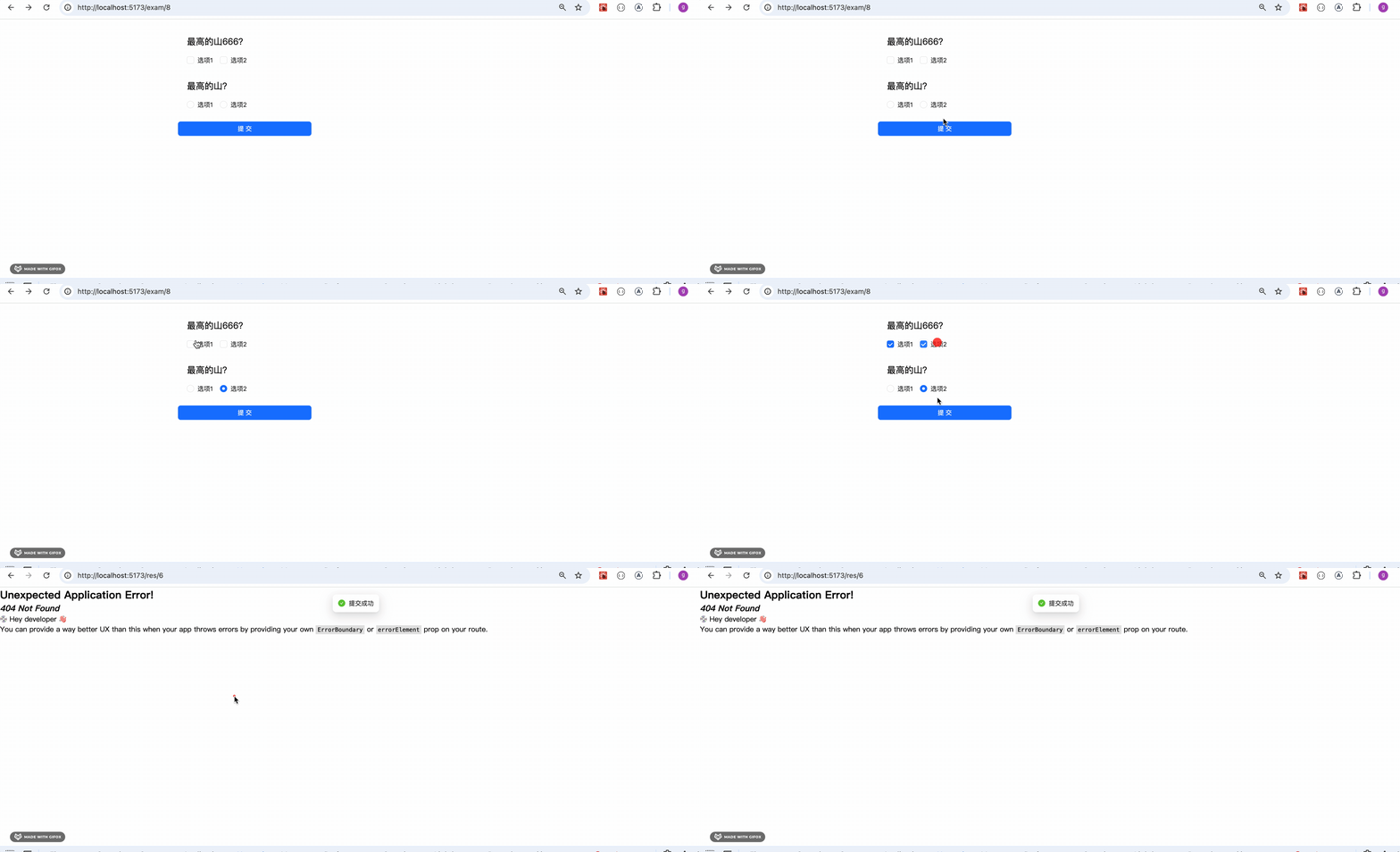
这节来写一下。
我们现在并没有做分数的计算:
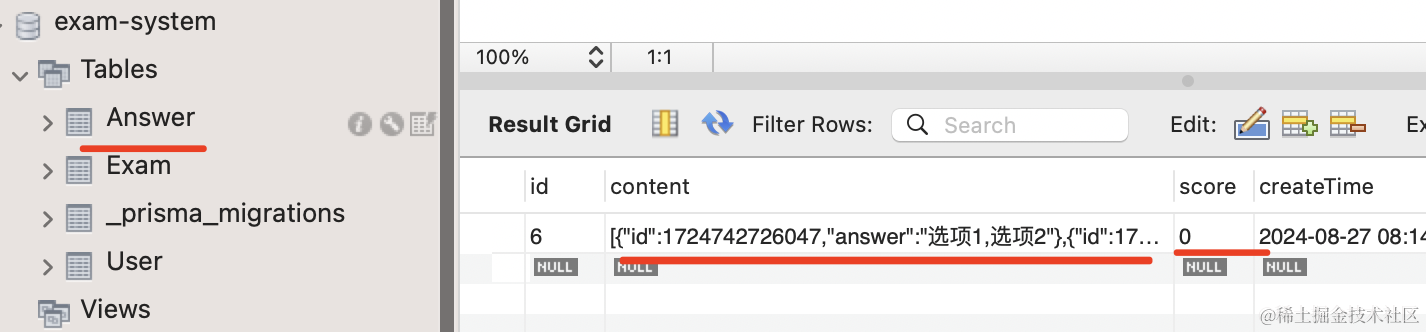
答卷表里的 score 都是 0
那怎么实现分数的计算呢?
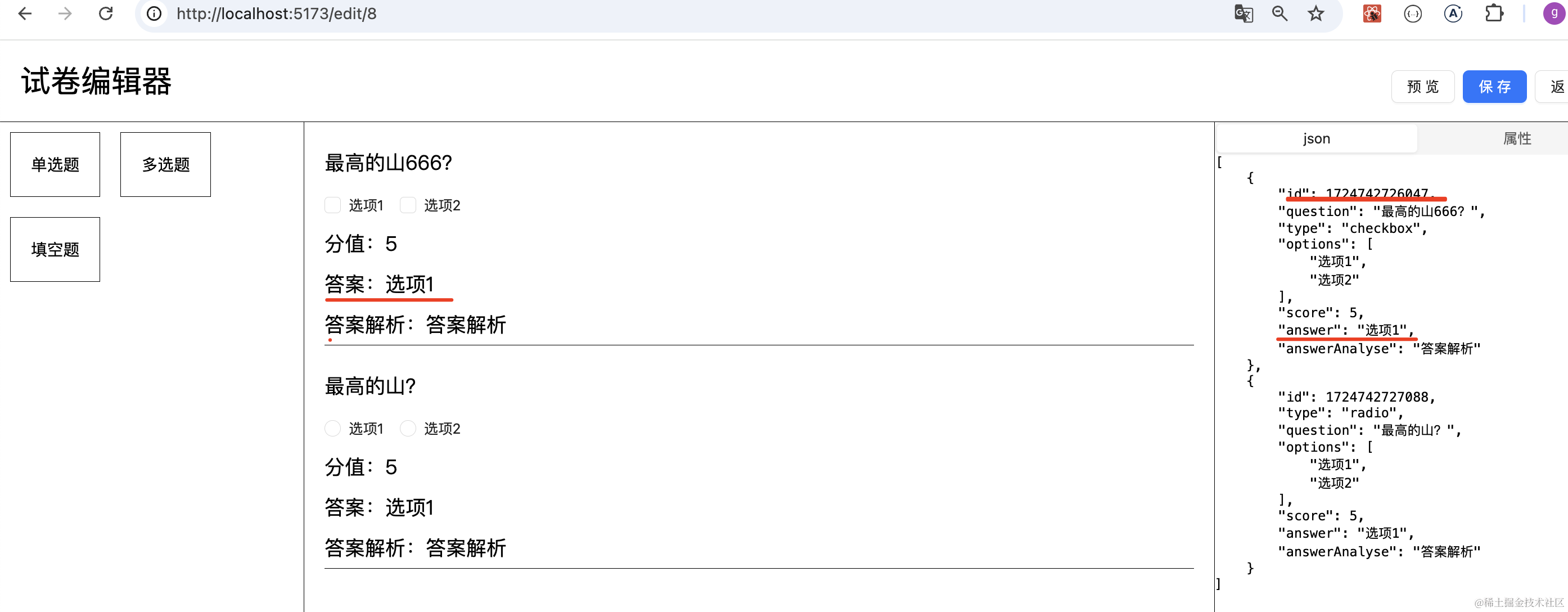
也很简单,每个试卷的内容保存在 exam 表里,并且都保存了正确答案。
我们只要根据 id 和 answer 表里的答案对比下就知道了:

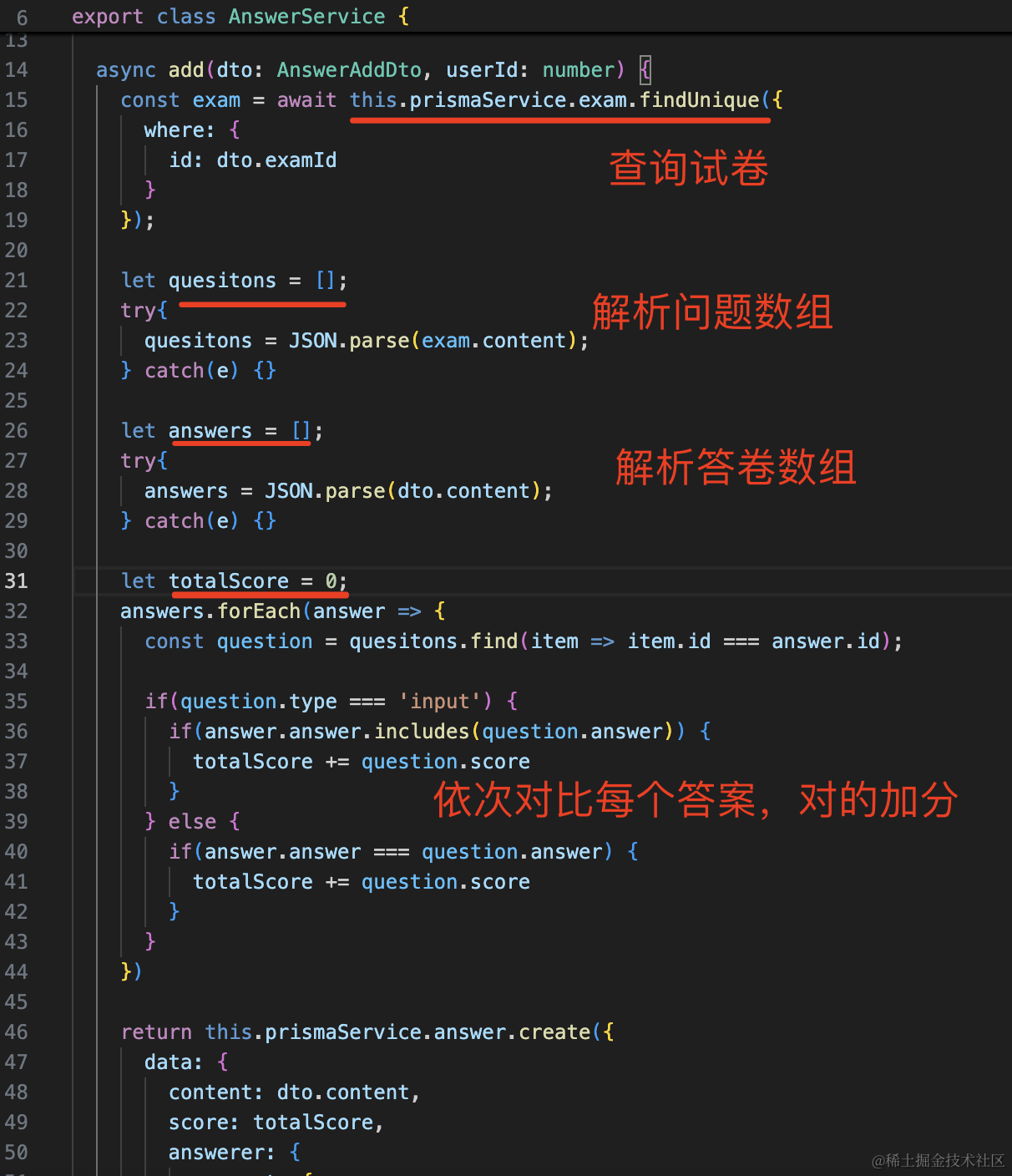
改下 AnswerService 的 add 方法:
async add(dto: AnswerAddDto, userId: number) {
  const exam = await this.prismaService.exam.findUnique({
    where: {
      id: dto.examId
    }
  });

  let quesitons = [];
  try{
    quesitons = JSON.parse(exam.content);
  } catch(e) {}

  let answers = [];
  try{
    answers = JSON.parse(dto.content);
  } catch(e) {}

  let totalScore = 0;
  answers.forEach(answer => {
    const question = quesitons.find(item => item.id === answer.id);

    if(question.type === 'input') {
      if(answer.answer.includes(question.answer)) {
        totalScore += question.score
      }
    } else {
      if(answer.answer === question.answer) {
        totalScore += question.score
      }
    }
  })

  return this.prismaService.answer.create({
    data: {
      content: dto.content,
      score: totalScore,
      answerer: {
        connect: {
            id: userId
        }
      },
      exam: {
        connect: {
            id: dto.examId
        }
      }
    },
  })
}
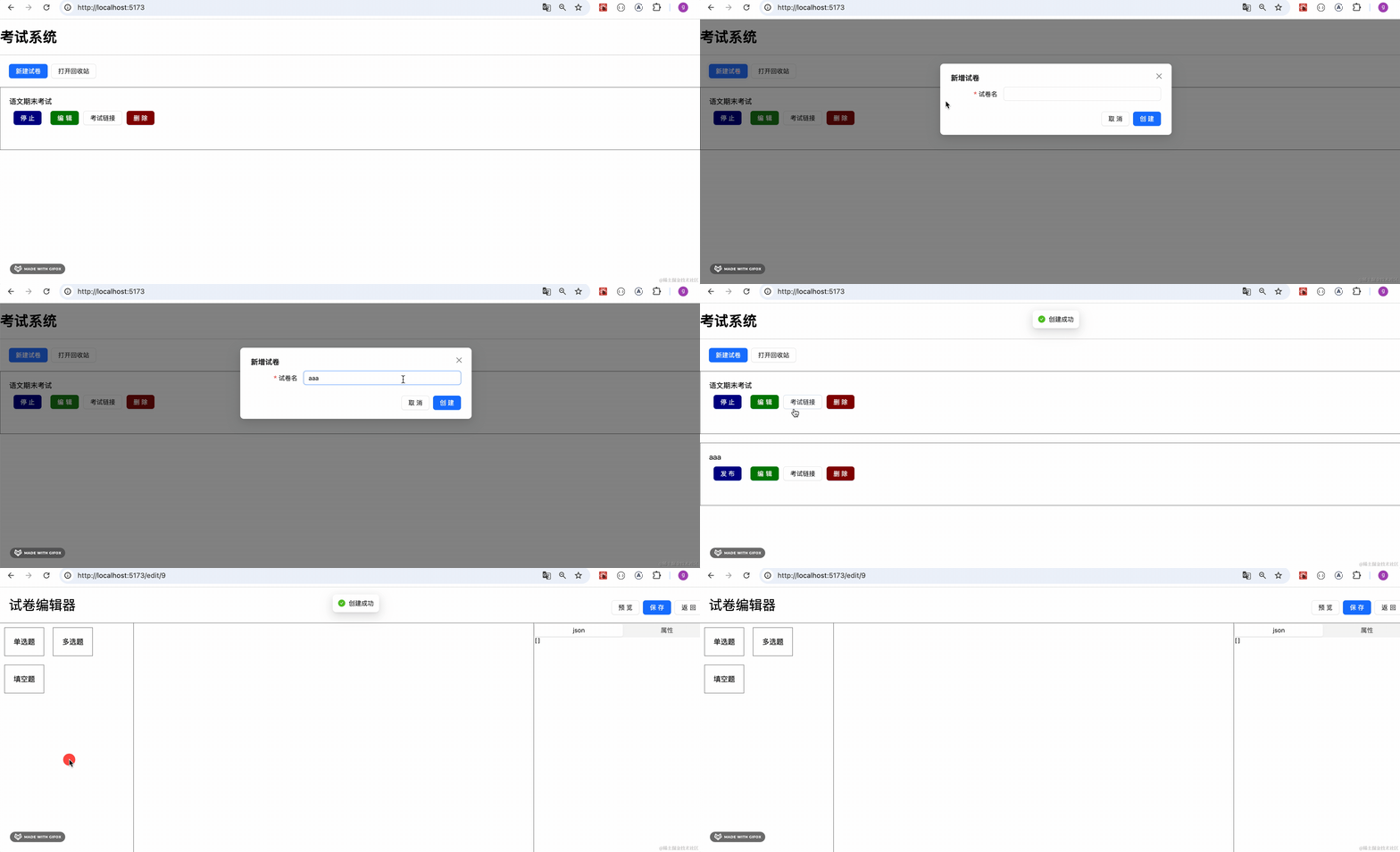
测试下:
新建试卷,进入编辑器:
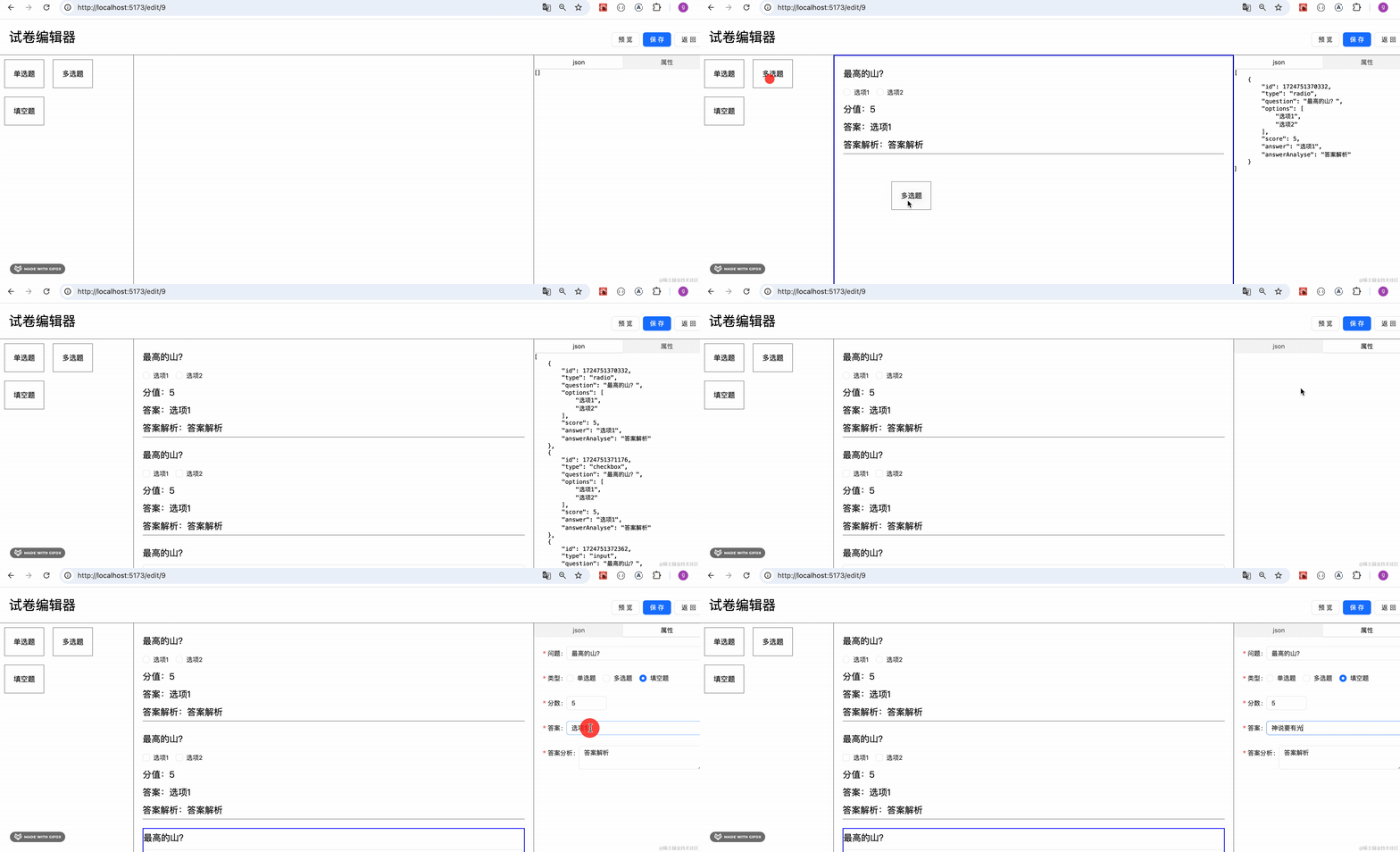
每种类型问题添加一个:
点击保存后,去答卷:
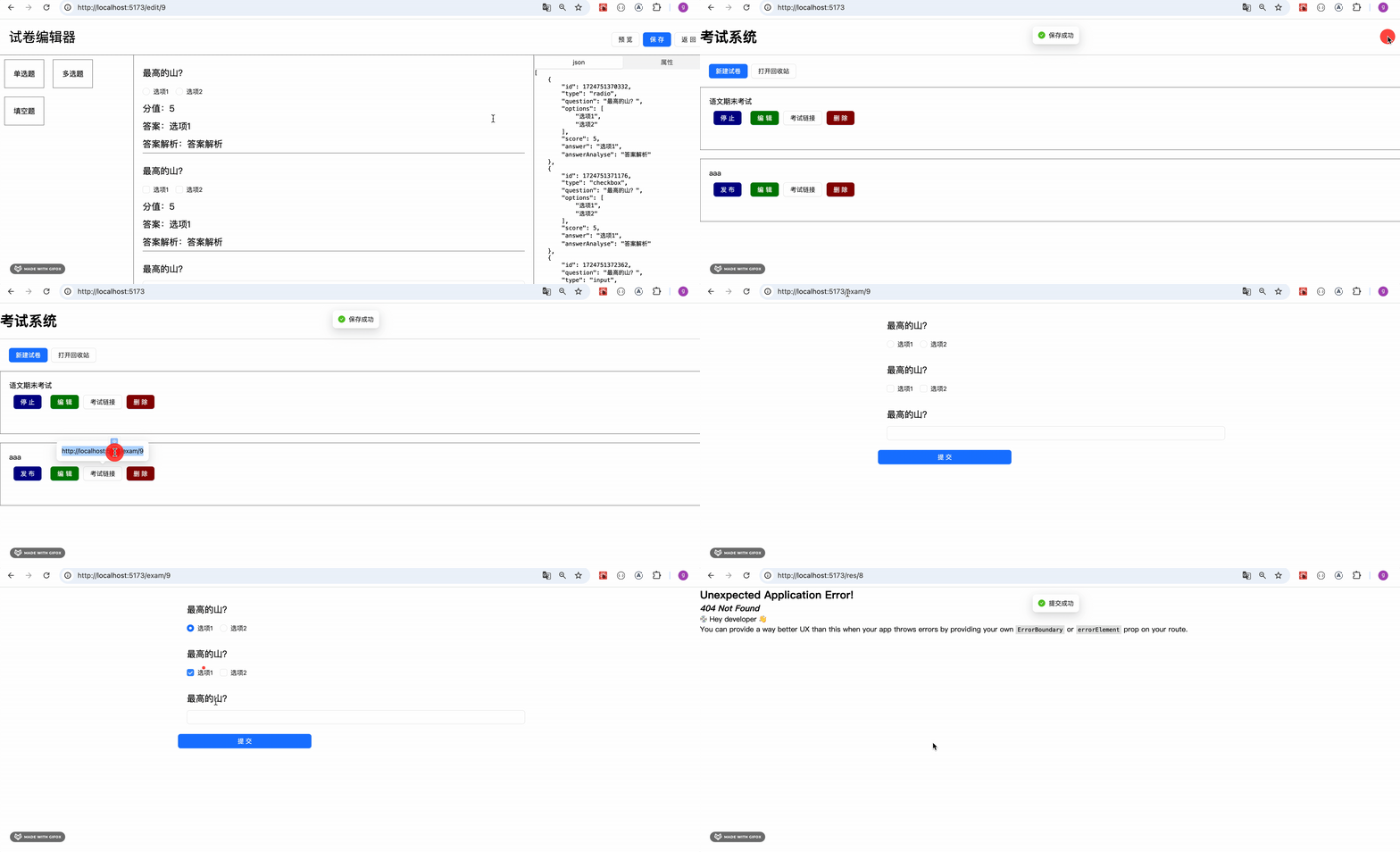
可以看到,计算出的分数是对的:

然后我们写下结果页面,显示下分数:
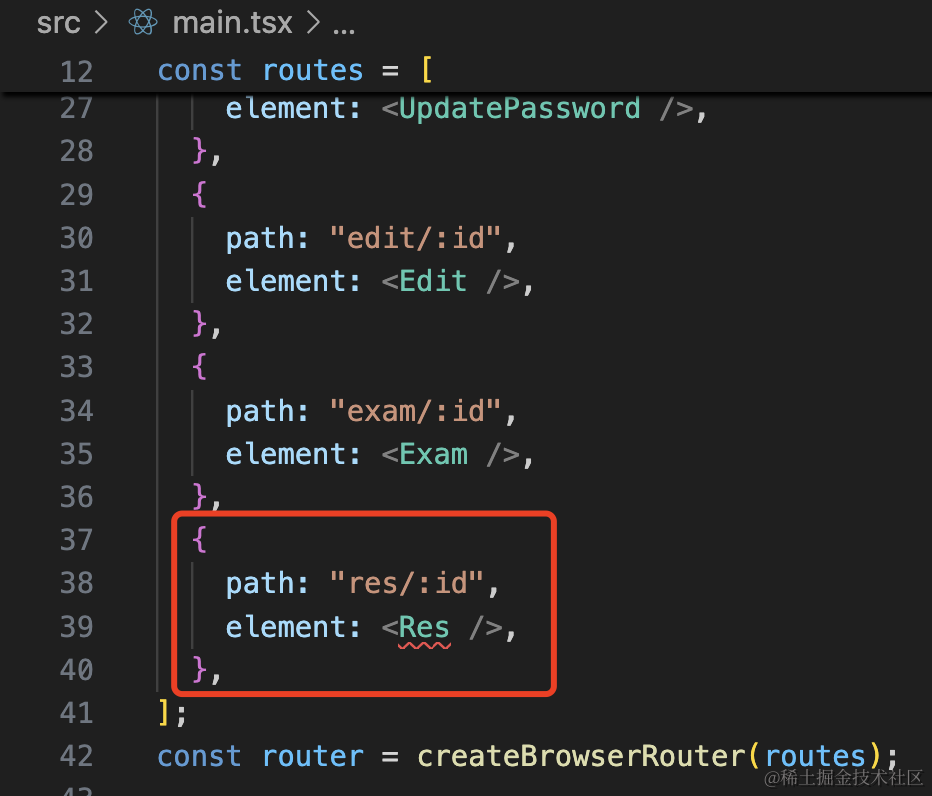
{
    path: "res/:id",
    element: <Res />,
},
创建 pages/Res/index.tsx
import { Link, useParams } from "react-router-dom";
import { useEffect } from "react";

export function Res() {
    let { id } = useParams();

    async function query() {
        if (!id) {
            return;
        }
    }

    useEffect(() => {
        query();
    }, []);

    return (
        <div id="res-container">
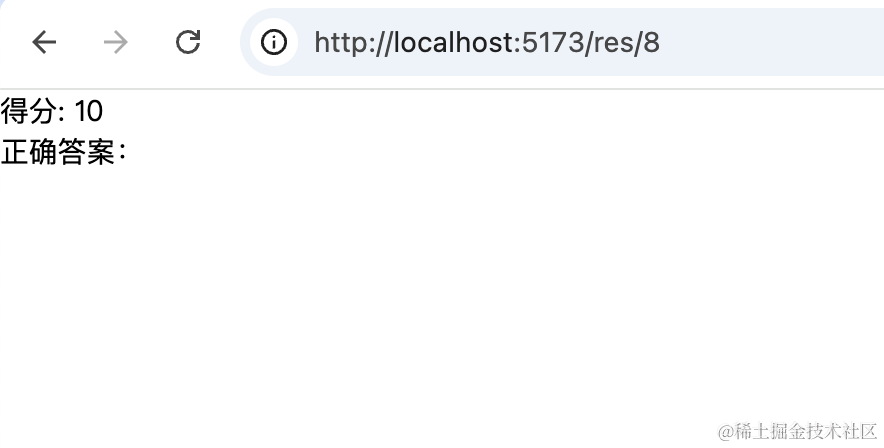
            <div>得分: 10</div>
            <div>正确答案:</div>
        </div>
    );
}
在 interface/index.tsx 添加 find 接口:
export async function answerFind(id: number) {
    return await answerServiceInstance.get("/answer/find/" + id);
}
调用下:
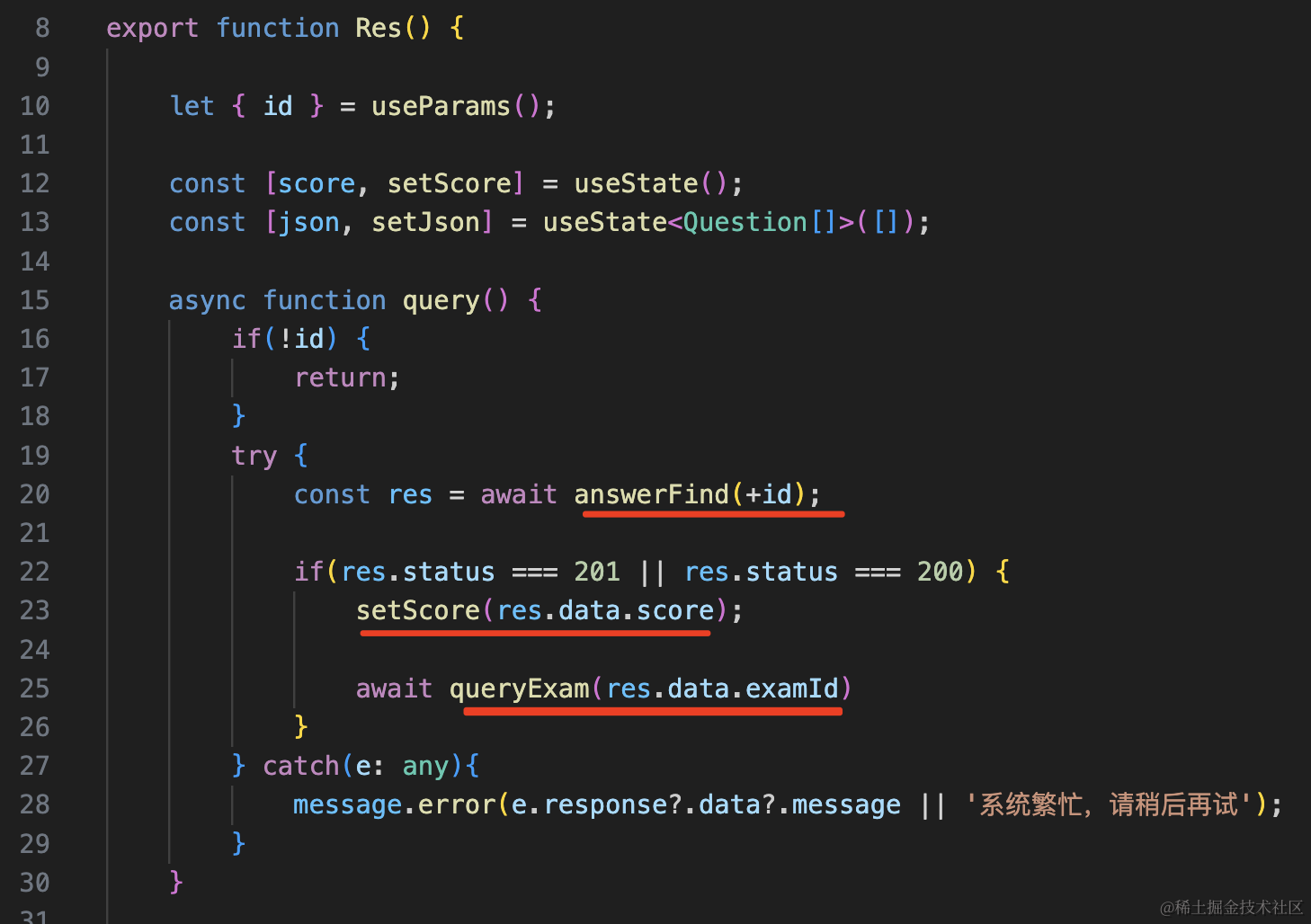
根据 id 查询答卷,设置 score。
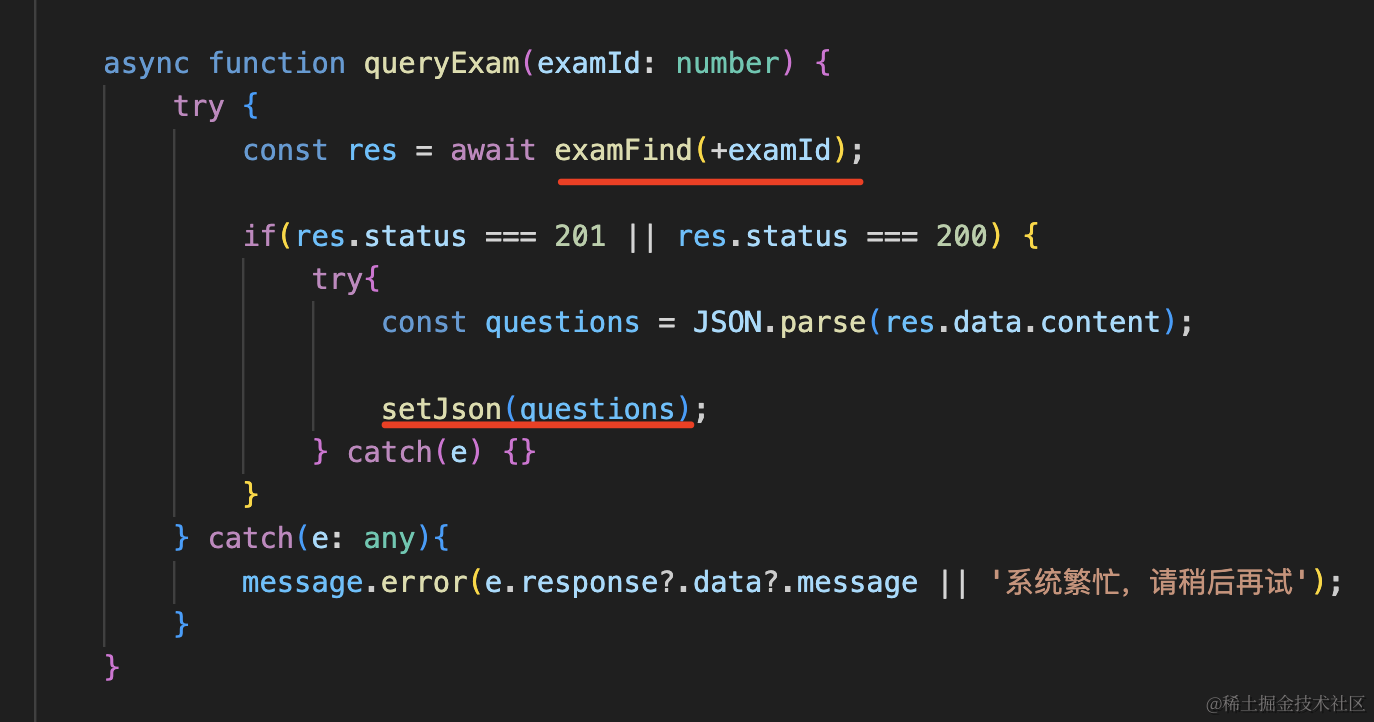
并且根据 examId 查询下试卷:
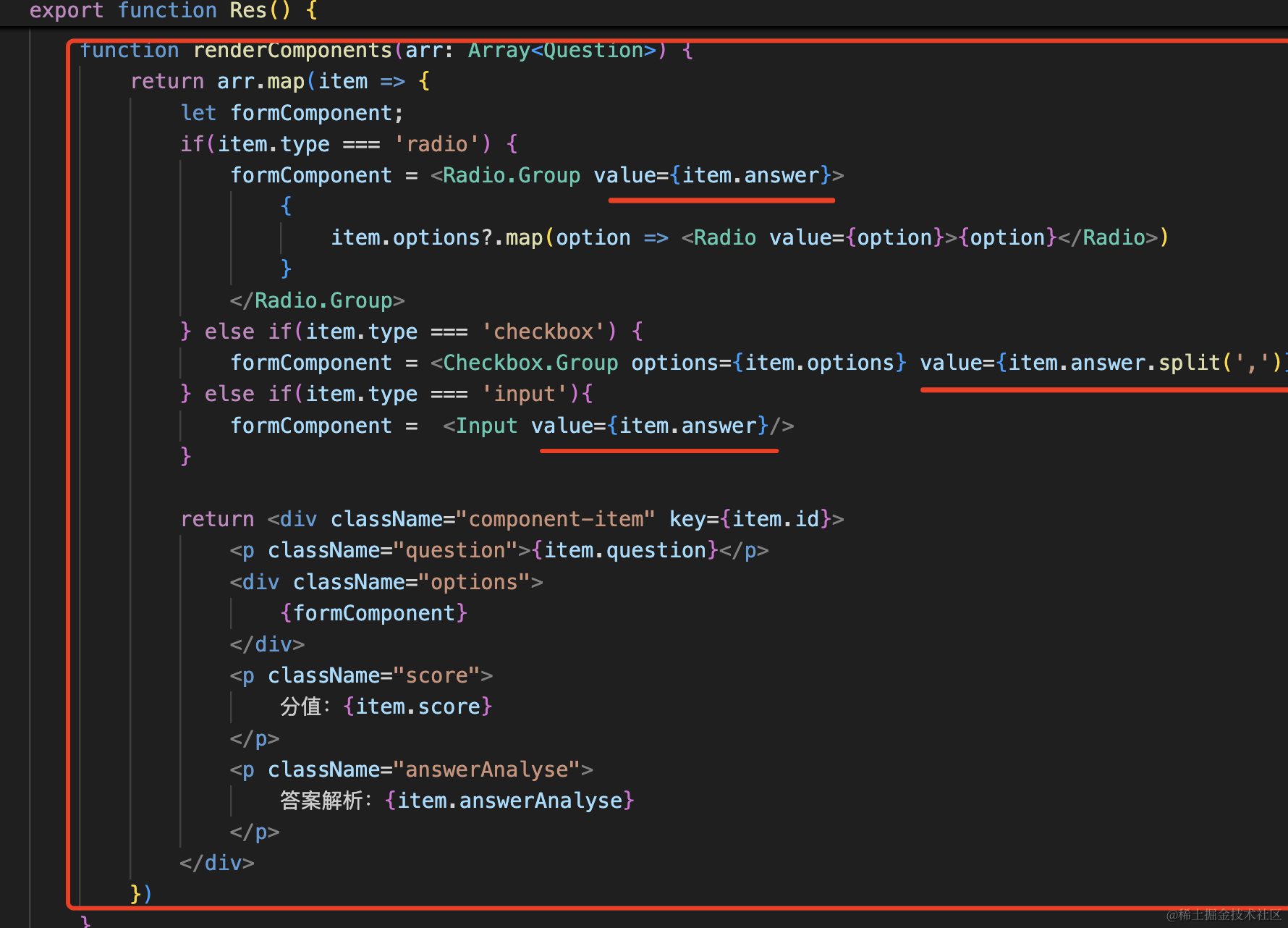
渲染 json 的逻辑和编辑器一样,只不过 value 直接指定为正确答案:
import { Link, useParams } from "react-router-dom";
import { useEffect, useState } from "react";
import { answerFind, examFind } from "../../interfaces";
import { Button, Checkbox, Input, message, Radio } from "antd";
import { Question } from "../Edit";
import "./index.scss";

export function Res() {
    let { id } = useParams();

    const [score, setScore] = useState();
    const [json, setJson] = useState<Question[]>([]);

    async function query() {
        if (!id) {
            return;
        }
        try {
            const res = await answerFind(+id);

            if (res.status === 201 || res.status === 200) {
                setScore(res.data.score);

                await queryExam(res.data.examId);
            }
        } catch (e: any) {
            message.error(e.response?.data?.message || "系统繁忙,请稍后再试");
        }
    }

    async function queryExam(examId: number) {
        try {
            const res = await examFind(+examId);

            if (res.status === 201 || res.status === 200) {
                try {
                    const questions = JSON.parse(res.data.content);

                    setJson(questions);
                } catch (e) {}
            }
        } catch (e: any) {
            message.error(e.response?.data?.message || "系统繁忙,请稍后再试");
        }
    }

    useEffect(() => {
        query();
    }, []);

    function renderComponents(arr: Array<Question>) {
        return arr.map((item) => {
            let formComponent;
            if (item.type === "radio") {
                formComponent = (
                    <Radio.Group value={item.answer}>
                        {item.options?.map((option) => (
                            <Radio value={option}>{option}</Radio>
                        ))}
                    </Radio.Group>
                );
            } else if (item.type === "checkbox") {
                formComponent = (
                    <Checkbox.Group
                        options={item.options}
                        value={item.answer.split(",")}
                    />
                );
            } else if (item.type === "input") {
                formComponent = <Input value={item.answer} />;
            }

            return (
                <div className="component-item" key={item.id}>
                    <p className="question">{item.question}</p>
                    <div className="options">{formComponent}</div>
                    <p className="score">分值:{item.score}</p>
                    <p className="answerAnalyse">
                        答案解析:{item.answerAnalyse}
                    </p>
                </div>
            );
        });
    }

    return (
        <div id="res-container">
            <div className="score-container">
                得分: <span>{score}</span>
            </div>
            <div className="answer-list">
                正确答案:{renderComponents(json)}
            </div>
            <Button type="primary">
                <Link to="/">返回试卷列表</Link>
            </Button>
        </div>
    );
}
index.scss
#res-container {
    padding: 20px;

    .score-container {
        span {
            font-size: 50px;
            color: red;
            font-weight: bold;
        }
        margin-bottom: 20px;
    }

    .component-item {
        margin: 20px;

        line-height: 40px;
        font-size: 20px;

        .answerAnalyse {
            color: green;
        }
    }
}
看下效果:
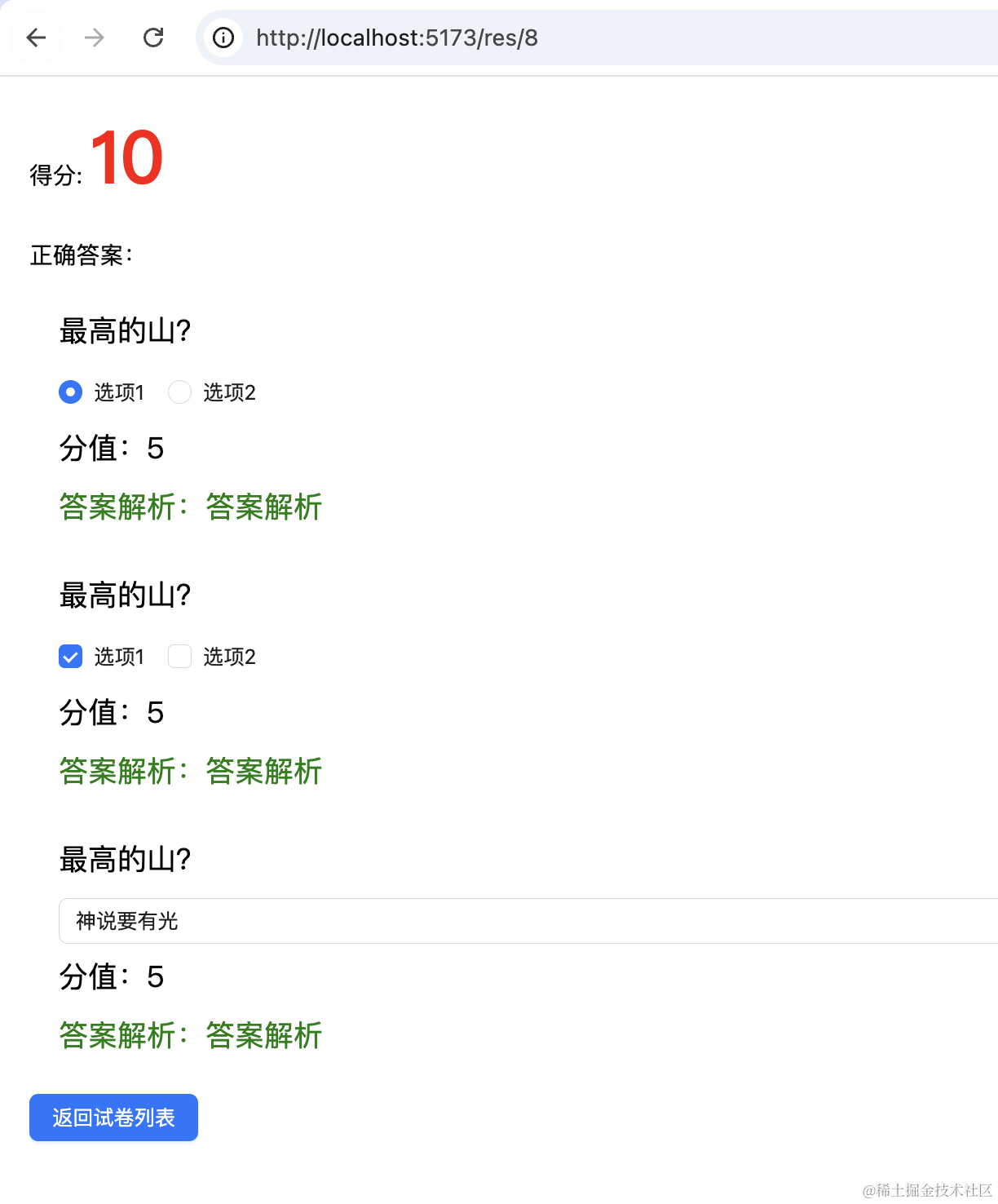
没啥问题。
我们整体试一下:
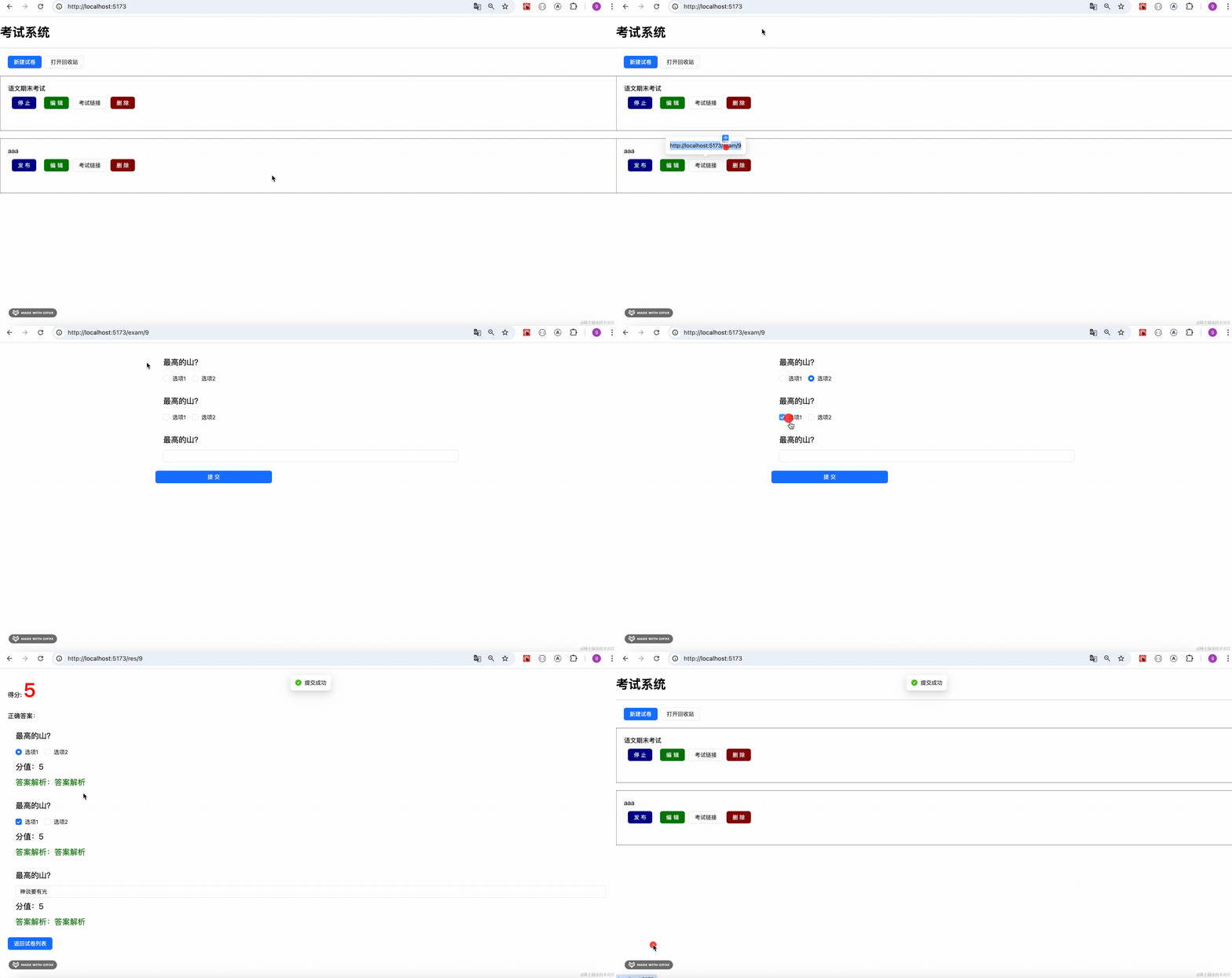
没啥问题。
案例代码在小册仓库:
总结
这节我们实现了自动判卷,其实就是根据 id 一一对比试卷里的正确答案和答卷里的答案。
然后实现了结果页面,查询判卷的分数还有试卷的正确答案。
这样,从新建试卷、编辑试卷、答卷、到自动判卷的流程就完成了。